

Jobs dashboard


Run a job
To run a job, on the sidebar, click Workflows, and then click Run in the row for the workflow that you want to run.Monitor a job
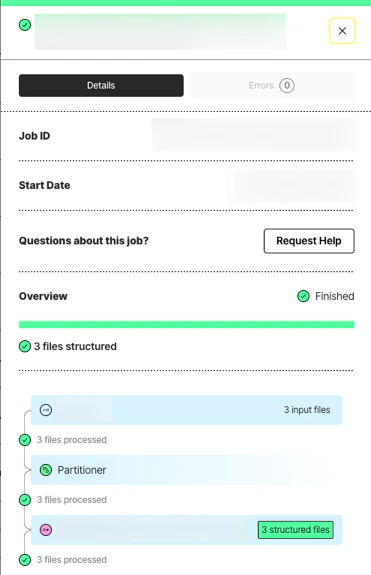
- The job’s ID.
- The job’s start date.
- Information about what happened in each of the job’s stages.
Preflight check
The Job Preflight Check runs before a job processes any documents. It checks that the credentials and settings are valid for each source connector, destination connector, and model-provider node (partitioner, chunker, embedder, enrichment, and extractor). It does not read or write documents. The check runs while the job is Pending (SCHEDULED in the API). Most checks finish in seconds, and some take a few minutes. You can cancel a pending job.
Which check results reject a job
If any node fails the check with one of these results, the job ends as Rejected (REJECTED in the API):
Any other result lets the job run:
AUTH_NETWORK_UNREACHABLE, AUTH_PROVIDER_UNAVAILABLE, PROVIDER_RATE_LIMITED, UNKNOWN, or a check that does not finish in time. If the problem is real, the job can still end as Failed (FAILED).
A rejected job processed no documents. Rejected is a final status, and Unstructured does not retry the job.
Jobs that skip the preflight check
- Test runs on local files that you upload in Unstructured Pipelines, such as on the Start page.
- Jobs created from a workflow template.
- Jobs for a workflow with the check turned off. Select Skip Preflight Check in the workflow settings, or set
skip_preflighttotruewhen you create or update a workflow. For a local-file processing job, setskip_preflightin therequest_dataof the create job request.
On dedicated instance and in-VPC deployments, availability of the Job Preflight Check depends on your deployment. Contact your Unstructured account team for details.
Investigate a rejected job
1
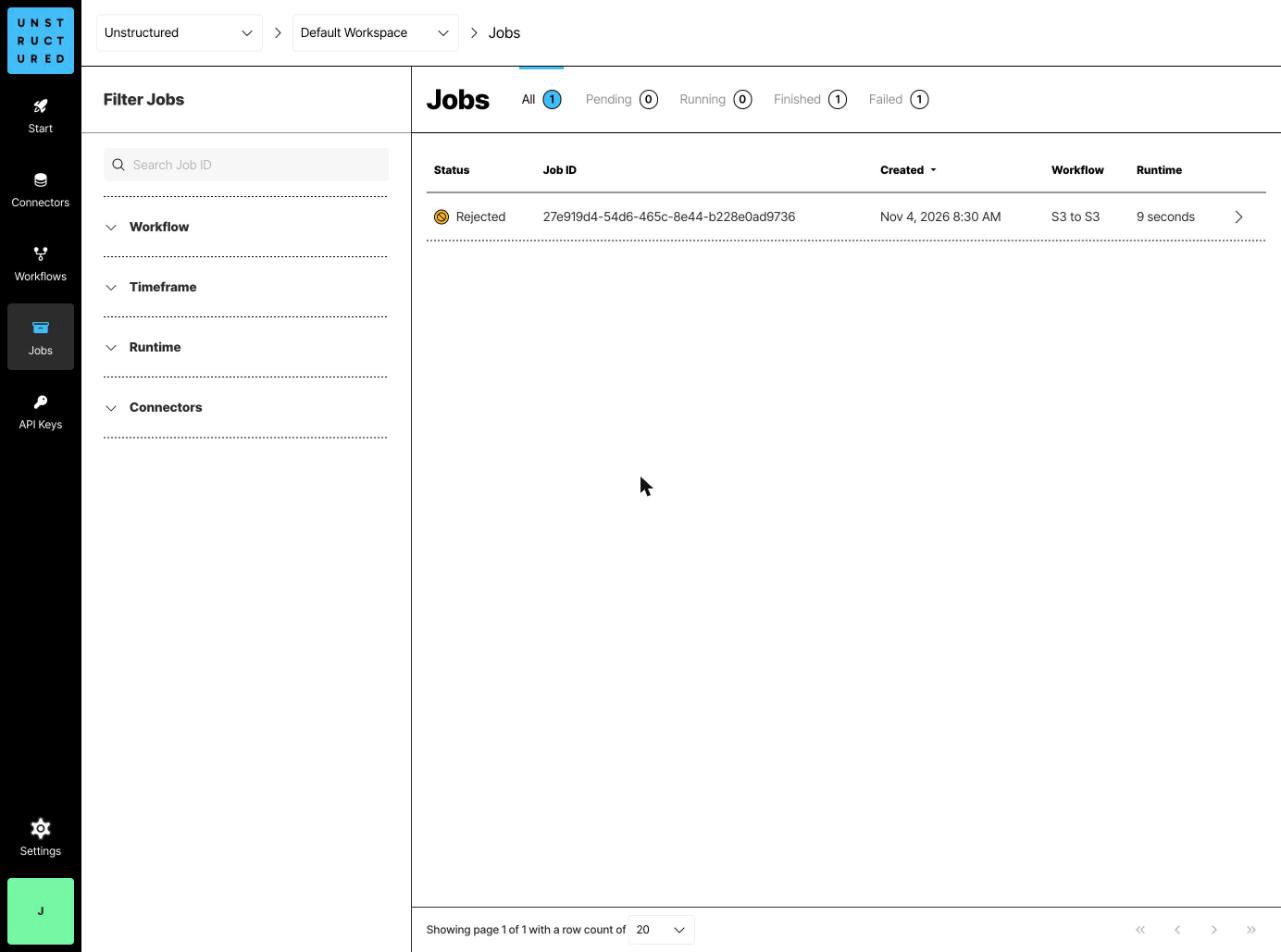
Open the rejected job
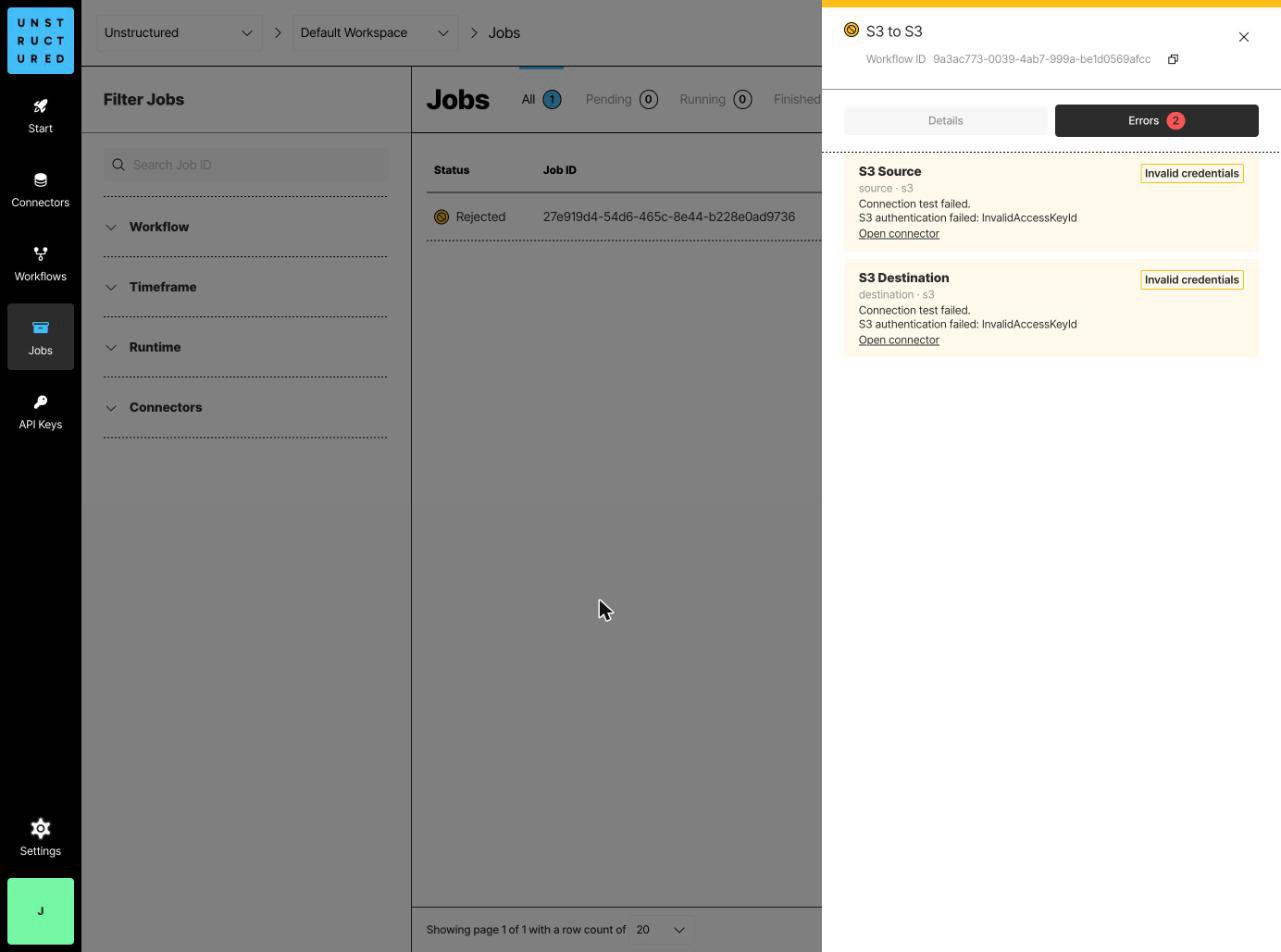
On the sidebar, click Jobs, and then click the rejected job. The Details tab lists each rejected node with its category, such as Invalid credentials.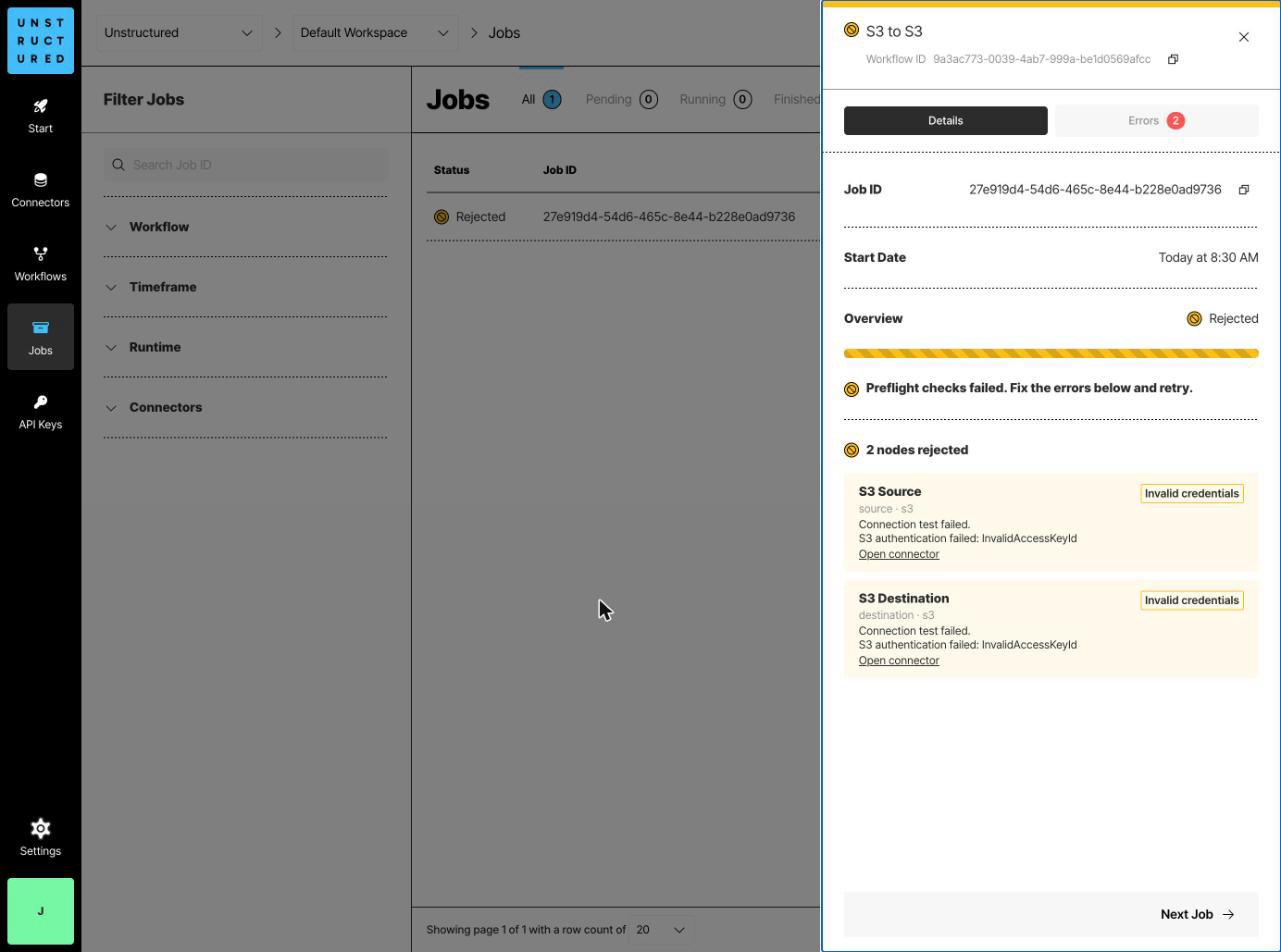
2
Fix the connector or node
For a connector, click Open connector in its row on the Details tab, and then update and save its credentials or settings. For any other node, fix its settings in the workflow designer.
3
Run the workflow again
On the sidebar, click Workflows, and then click Run for the workflow. The run creates a new job.